
Responsible AI study · Eqora guide
Homework photo privacy: check before you upload
A practical routine for removing personal details, sharing only the problem you need, and checking the rules before a worksheet leaves your phone.
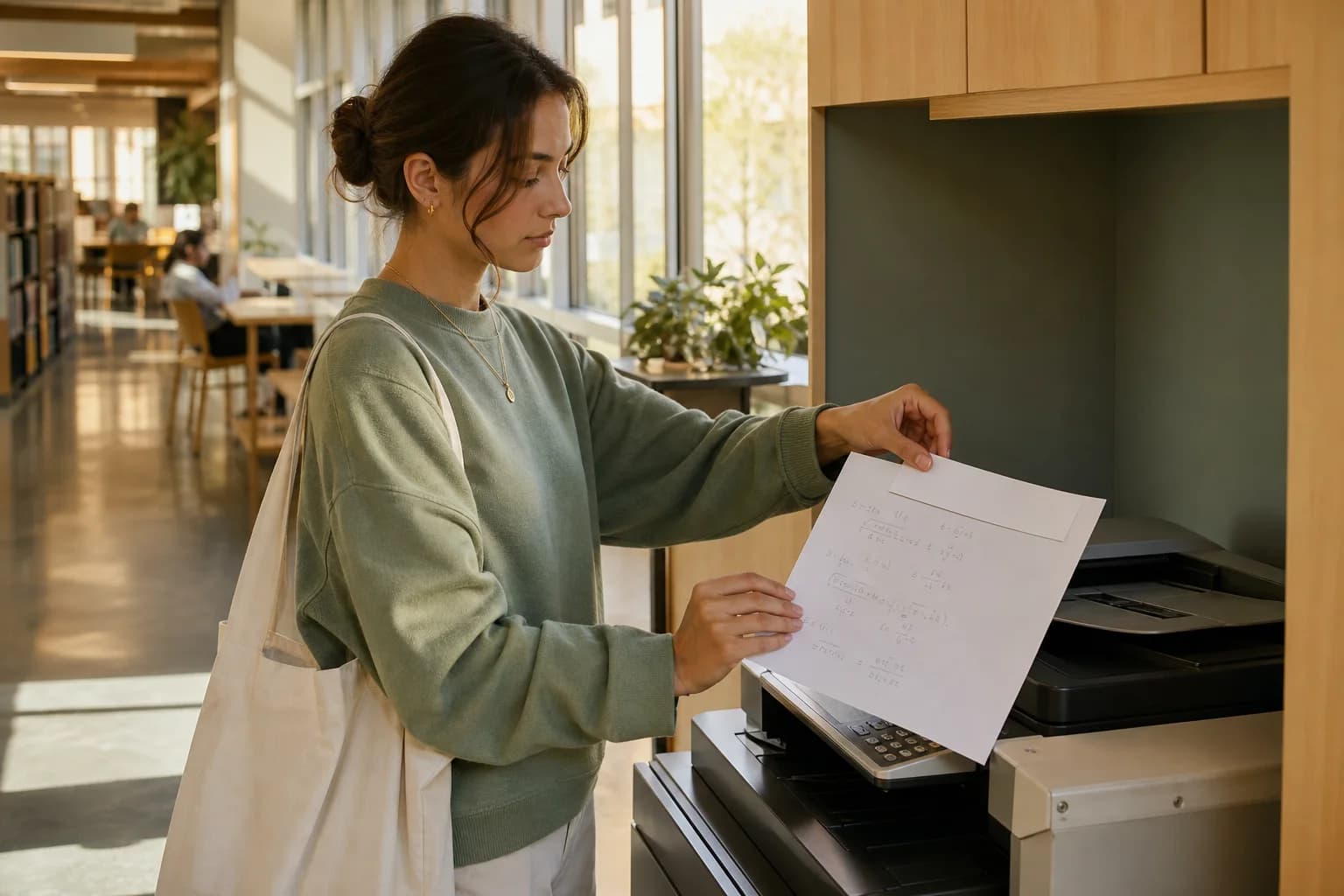
Homework photo privacy deserves the same attention as the mathematics in the picture. A worksheet can reveal a full name, student number, school, class, teacher, email address, handwriting sample, location, or another person in the background. Most of that information is irrelevant when the only useful part is one equation. A ten second review before an upload can reduce what leaves your phone without making the problem harder to understand.
The safest habit is simple: decide whether the material may be shared, remove identifying details, isolate the smallest complete problem, inspect the background and photo information, and understand the service you plan to use. This guide works with any study tool. It does not assume that a provider is private merely because the upload feels temporary, and it does not ask you to hide mathematical context that is necessary for a correct explanation.
Begin every homework photo privacy check with four zones
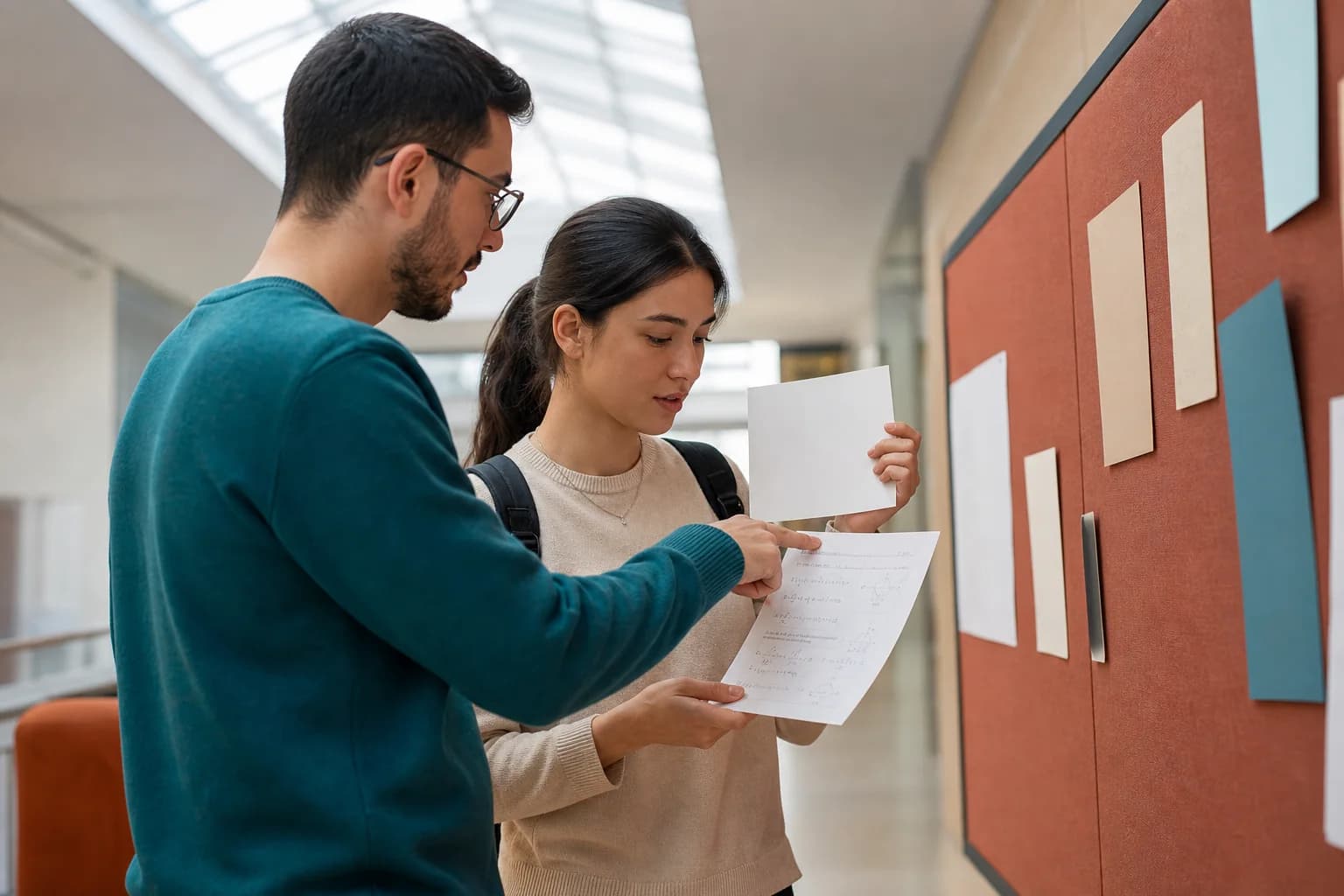
Before taking a picture, divide the page mentally into four zones. The task zone contains the equation, diagram, data table, instructions, and conditions needed to solve the problem. The identity zone contains names, initials, student numbers, email addresses, class codes, and school branding. The people zone includes faces, handwriting, comments, or work belonging to classmates and teachers. The environment zone includes screens, mail, noticeboards, timetables, and anything in the room that reveals more than the exercise.
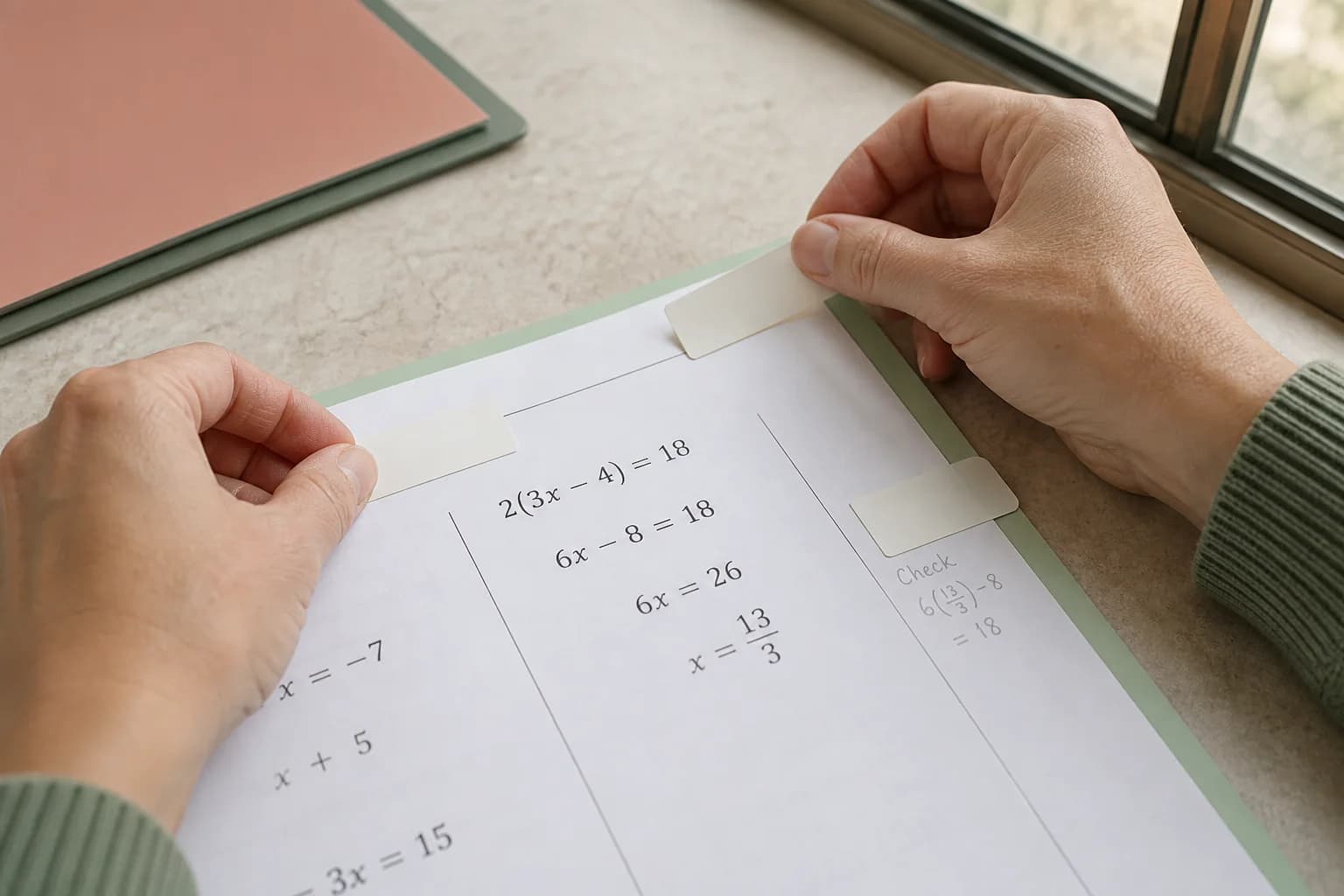
Keep the task zone and remove the rest whenever possible. A blank strip of paper can cover a worksheet header without changing the mathematics. Move the page to a plain surface rather than trusting a later crop. If a teacher comment is part of the question you need help understanding, rewrite the relevant idea in your own words instead of sending the marked page. This first pass is faster and safer than trying to remember every possible identifier after the photo has been taken.
- Task: the complete problem and required instructions
- Identity: names, numbers, accounts, class and school
- People: faces, comments and work that belongs to others
- Environment: screens, schedules, addresses and room details
Check permission before you check the pixels
A clear photograph is not automatically a permitted upload. Start with the rules that apply to the material. Your school, university, teacher, employer, or course platform may limit the use of generative AI or external services. Unreleased tests, live quizzes, answer keys, confidential case studies, paid course packs, and another person’s work deserve special caution. When the rule is unclear, ask the person responsible before sending the document to any third party.
UNESCO’s guidance on generative AI in education places data privacy and age appropriate use among the issues institutions should address. For an individual learner, that translates into a practical question: do I have a legitimate reason and permission to share this particular material here? If the answer is no or uncertain, do not upload it. Describe a similar fictional problem, type only the equation, use approved course resources, or ask a teacher in person instead.
If you would hesitate to hand the full page to an unknown person, do not send the full page to an unknown service.
Remove identifiers without damaging the math
Cover or crop names, initials, signatures, student IDs, usernames, email addresses, phone numbers, barcodes, QR codes, class codes, dates of birth, grades, and login details. School names and course codes can identify a small group even when your own name is absent. Teacher annotations and distinctive handwriting may also belong to someone else. Use an opaque physical cover when possible. A translucent digital marker can leave text readable, and a reversible edit may preserve the original underneath.
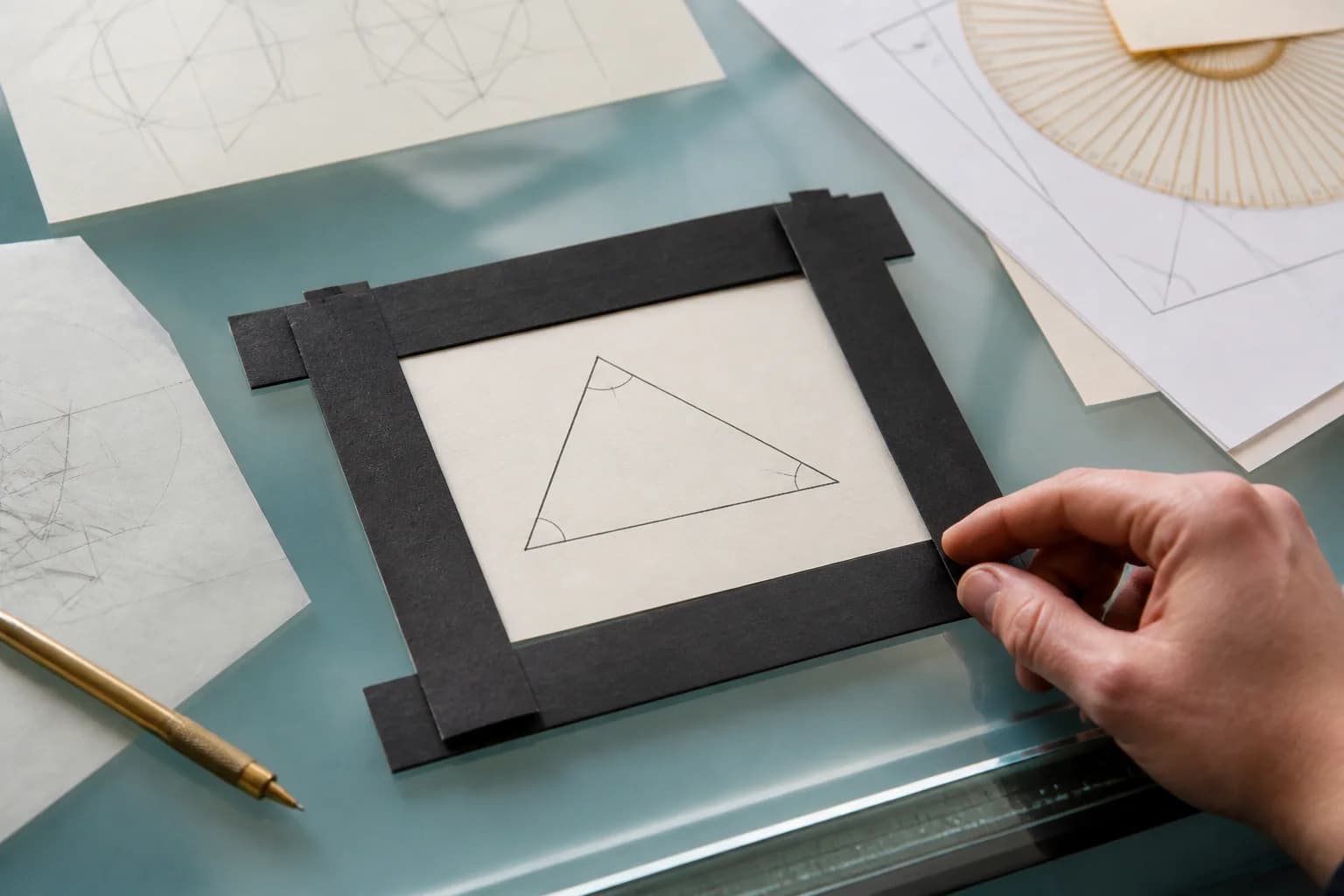
Then inspect the mathematical boundary. Do not cover a minus sign near the header, a unit beside a student number, or the top of a fraction because it happens to sit close to identifying text. Read the sanitized problem aloud from the photo. If you cannot reconstruct the complete instruction, variables, diagram labels, and constraints, adjust the cover or create a clean copy of the problem on a fresh page. Privacy minimization should remove identity, not meaning.
Inspect the background and the photo itself
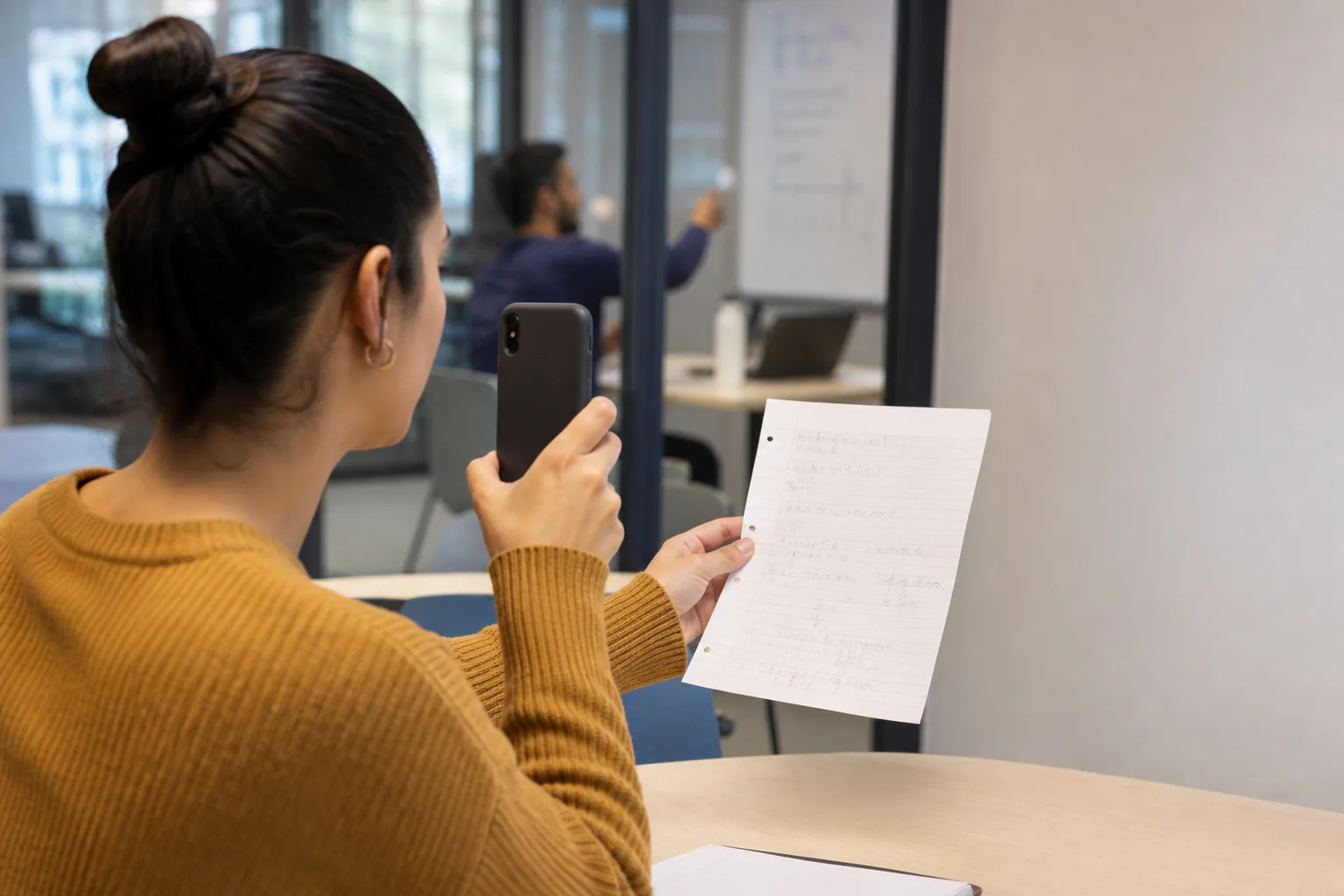
The page may be anonymous while the photograph is not. Look around every edge before tapping the shutter. A classmate’s face, a reflection in a window, an open message, a labeled folder, a timetable, a house number, or a computer screen can reveal people and places. Move to a plain wall or empty table. Take a new picture rather than relying on blur, because weak blur can sometimes leave shapes and text recognizable.
Photos can also contain metadata such as date, time, device details, and location. Whether a receiving service keeps that information depends on its processing, so do not assume it is removed. Apple explains how to review or remove location metadata in Photos and how to stop sharing location with a photo. Metadata is only one layer. It does not replace covering the worksheet header, checking the background, or understanding what the destination does with uploaded content.
Understand the service before sending the image
Read the current privacy information rather than relying on a slogan or an app store category. Look for what content is collected, why it is processed, whether it is retained, who receives it, what controls exist, and how deletion requests work. Check whether an account is required and whether your school has approved the tool. If the wording is missing or too vague for the material you hold, type a fictional equivalent or use an offline method instead.
Permissions deserve the same attention. A homework tool may need camera or photo access for a chosen image, but it should not receive broader access merely out of convenience. Review the permissions offered by your device and select the narrowest option that still completes the task. Recheck settings after an update. A safe routine depends on your choices and the provider’s current policy, not on assumptions carried over from a different app or an older version.
Use a final pause before upload and after the session
Preview the exact image that will be sent. Ask six questions: Is sharing allowed? Is the task complete? Have I removed my identifiers? Have I removed information about other people? Is the background clean? Do I understand the destination and its controls? If any answer is uncertain, stop and correct it. This pause should happen on the final file, because the original photo and the cropped version can contain very different information.
After the study session, use any available history or deletion controls if you no longer need the upload, while recognizing that deletion terms vary by provider. Remove unnecessary duplicate photos from your library and recently deleted folder according to your own retention needs. Keep the mathematical notes you created in your own words. For future work, prepare a plain sheet with only the exercise before taking a picture. Repeating the same small routine turns privacy from an emergency reaction into an ordinary study skill.
- Allowed: the material and the tool are permitted
- Anonymous: personal and third party details are gone
- Minimal: only one complete problem is included
- Reviewed: background, metadata, policy and permissions are checked
Put it into practice now
Choose one problem from your current homework or review set. Attempt it before opening Eqora, then use the app only at the point where your own reasoning stops.
- State what the problem is asking before you solve it
- Identify the first step you cannot justify
- Ask Eqora one focused follow-up about that step
- Finish with a similar problem and no solution in view
The session is complete when the method is clearer, not simply when the worksheet has one more answer.